
Filters
This page lists the filters available in Page View and what they do. The filters are provided to help with reading images that may require some processing to make legible. Simple examples might be the use of the Mirror filter to read bleed-through text, or the Rotation filter to more easily read text written in different orientations on the page.
More complex uses include the ability to adjust the individual colour channels. For example, the Pseudo-Colour filters can separate colours based on their intensity, and map them to a wider range of colours. This can then be further manipulated by targeting these colour channels, either globally or with different targeted methods in the Advanced Colour Adjust filters.
No single combination of filters can work well on all images, but adjusting these filters in combination can yield interesting results. If a particular combination of filters produces results, the “Save view” will export the current view into a PNG file that can be downloaded.
Shown here is a palimpsest in the original and with the pseudo-colour filters applied.
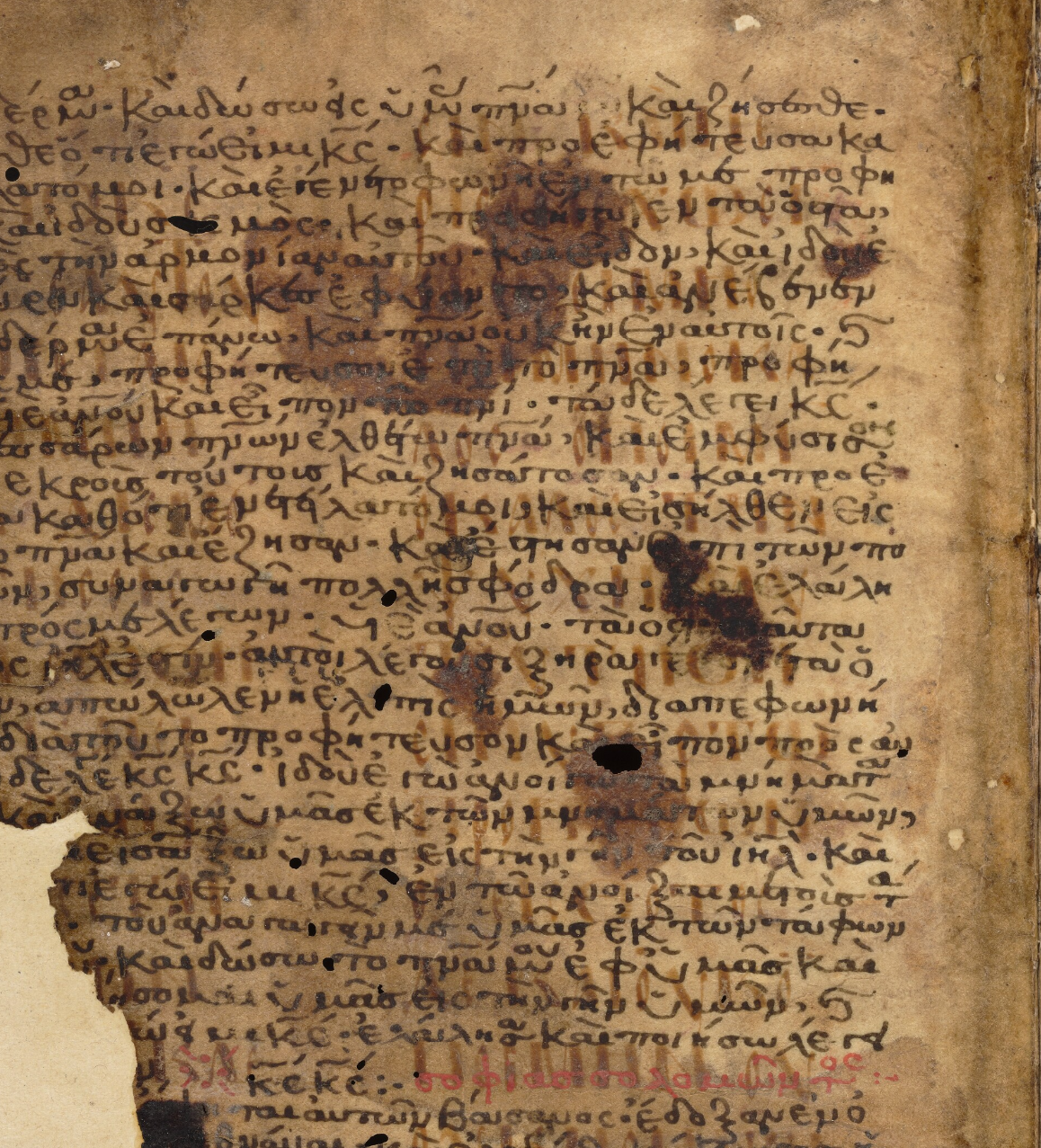
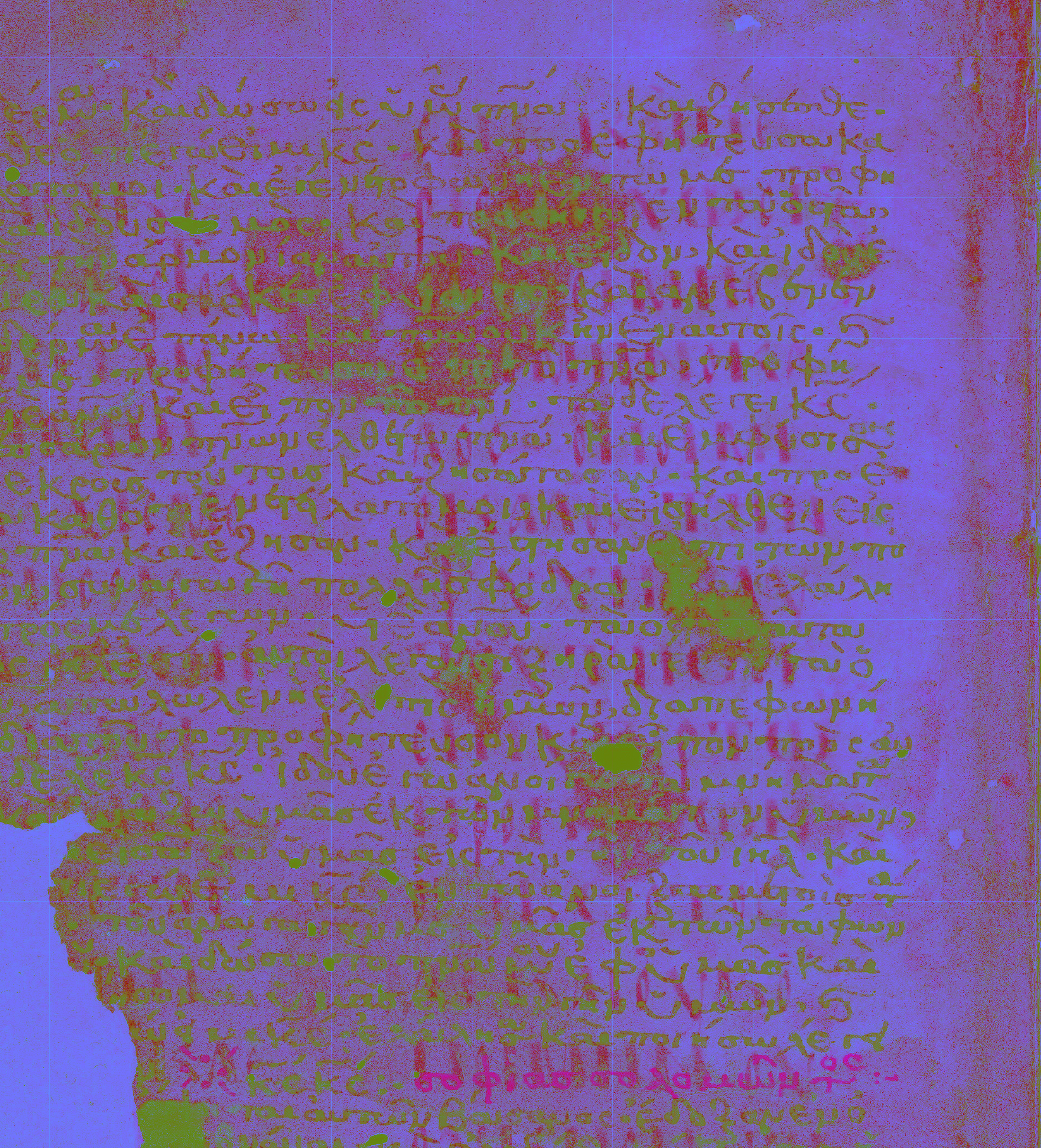
If you find a particular set of filter settings that you find useful, the “Import / Export Filter Settings” section lets you view a JSON representation of the filter settings. You can copy these, and then when moving to a new image, paste them back in to that same box and press the “Apply” button.
Filter Descriptions
Transform
- Rotation: Rotates the canvas from -180° to 180°.
- Mirror: Flips the image horizontally.
Tone
- Grayscale: Converts the image to grayscale.
- Invert: Inverts all colour channels (light becomes dark, and vice‑versa). Helpful when viewing negatives or other inverted-colour digitizations.
- Threshold: Converts the image to black/white based on an adjustable cutoff value.
Colour Adjust
- Brightness: Adds or subtracts brightness across all pixels.
- Contrast: Expands or compresses tonal range.
- Gamma: Non‑linear mid‑tone adjustment.
- Saturation: Increases or decreases colour intensity.
- Vibrance: Increases colour intensity more in less‑saturated areas.
- Hue: Rotates hue across all pixels.
- Channel Mix (Red / Green / Blue): Adjusts the contribution of each colour channel.
Morphology
- Morph: Applies an erosion or dilation operation. Erode shrinks bright regions and can remove small bright specks; dilate expands bright regions and can fill small gaps.
- Operation: Choose
erodeordilateto control the direction of the effect. - Kernel: Size of the morphology kernel (
3x3,5x5, or7x7). Larger kernels have a stronger, more global impact.
Convolution
- Kernel: Applies a convolution preset (
sharpen,blur,edge, oremboss). Convolution remaps each pixel based on its neighbours, which is useful for edge enhancement or smoothing.
Colourmap
- Preset: Maps luminance values to a fixed colour palette (
gray,hot, orcool). This treats the image as intensity and assigns colours based on brightness. - Center: Shifts the palette midpoint. This can emphasize darker or lighter details by moving where the palette “midpoint” lands.
Pseudo‑Colour
Pseudo-Colour filters are provided to try and separate colours on an image into a wider difference. This helps to target, for example, an under-text and an over-text so that they can be boosted or cut, making it easier to read faint or overwritten text.
- Mode: False‑colour mapping derived from RGB relationships (e.g. Red–Green diff, Luma, CMY, Heat). These modes are designed to emphasize differences between channels or map luminance into a synthetic palette.
- Red / Green / Blue Weights: Scales channel influence for applicable modes (
0to2). Increasing a weight makes that channel contribute more strongly to the mapping. - Replace Colour: Replaces a selected source colour with a target colour. This runs after the pseudo‑colour mapping.
- Tolerance: How close a pixel must be to the source colour to be replaced (
0to255). Higher tolerance will replace a broader range of similar colours. - Strength: Blend amount for the replacement (
0to1). Lower values blend the replacement with the original colour. - Preserve Luminance: Keeps the original luminance while changing the colour, so brightness stays consistent.
Visible Area PCA
Visible Area PCA computes PCA-based colour transforms over the currently visible area. As more pixels are sampled while viewing/zooming/panning, the PCA basis can stabilize and slightly change the rendering.
- Mode: Applies PCA colour transforms (
PCA (RGB),PCA Component 1,PCA Component 2,PCA Component 3) to highlight subtle colour structure. - Hue Rotation: Rotates PCA output hue (
-180°to180°) to help separate features in alternate colour presentations.
Advanced Colour Adjust
These are channel‑specific adjustments.
- Red Gamma / Green Gamma / Blue Gamma: Gamma curve applied to a single channel. This changes mid‑tone response without shifting the other channels, useful for boosting a channel that feels dull.
- Red Sigmoid / Green Sigmoid / Blue Sigmoid: S‑curve contrast boost applied to a single channel. It lifts mid‑tones more than highlights/shadows, creating extra separation in that channel.
- Red Hue Boost / Green Hue Boost / Blue Hue Boost: Boosts (or cuts) pixels near that hue. Negative values reduce the target hue. This operates on the hue of each pixel and only affects colours close to the target hue.
- Hue Window (Red / Green / Blue): Controls how wide the hue range is for the corresponding Hue Boost. A small window targets only very pure hues; a larger window affects a broader range of nearby colours.
- Red Vibrance / Green Vibrance / Blue Vibrance: Increases the intensity of a single channel, weighted by how strong that channel already is. Stronger channel values are boosted more than weaker ones.
Enhancement
- Background Normalize: Flattens uneven background intensity by estimating and removing slow background variation.
- Unsharp Mask: Sharpens edges by subtracting a blurred version from the original and boosting the difference (
0to3). - Adaptive Threshold: Thresholding based on local neighbourhood statistics, which is useful when lighting varies across the page.
- Window: Neighbourhood window size (
3to51, odd numbers only). - Offset: Bias applied to the local threshold (
-50to50).
- Window: Neighbourhood window size (
Notes
- Filter order: filters are applied in this sequence: basic tone/colour adjustments, morphology, convolution, colourmap, pseudo-colour, visible area PCA, replace colour, advanced colour adjustments, then adaptive threshold.
- Import / Export Filter Settings JSON:
- Show JSON exports only currently active filters.
- Apply starts from default settings and applies only the keys present in the JSON (omitted keys revert to defaults/off).